MCP (Model Context Protocol) servers enable AI assistants like Claude to interact directly with the Measure API. With an MCP server, you can manage customers, subscriptions, invoices, and billing operations through natural language conversations with your AI assistant.
Official MCP Server
As of Apr 9 2026, the official MCP server supports read-only tools. Write tools will be exposed in July along with token scopes to ensure safety in bulk actions. If you want to be able to modify data, we recommend using your own MCP server based on our public APIs Prerequisites
If connecting via API key (Claude Code, Cursor, or other clients):
- A Measure API key — generate one from Developers > API Tokens in the Measure dashboard. Note: Anyone with access to the API token will be able to perform all actions via the Public APIs or MCP tools.
- Your company ID — found in Developers > API Tokens in the Measure dashboard
Connection Details
| Property | Value |
|---|
| Server URL | https://mcp.getmeasure.com/mcp |
| Transport | Streamable HTTP |
MEASURE_API_TOKEN header | Your Measure API key |
MEASURE_COMPANY_ID header | Your Measure company ID |
Supported Clients
Claude.ai
Measure is available in the Claude Connectors marketplace.
If you’re on a Claude Team or Enterprise account and Measure doesn’t appear, your Claude admin may need to enable connector access first.
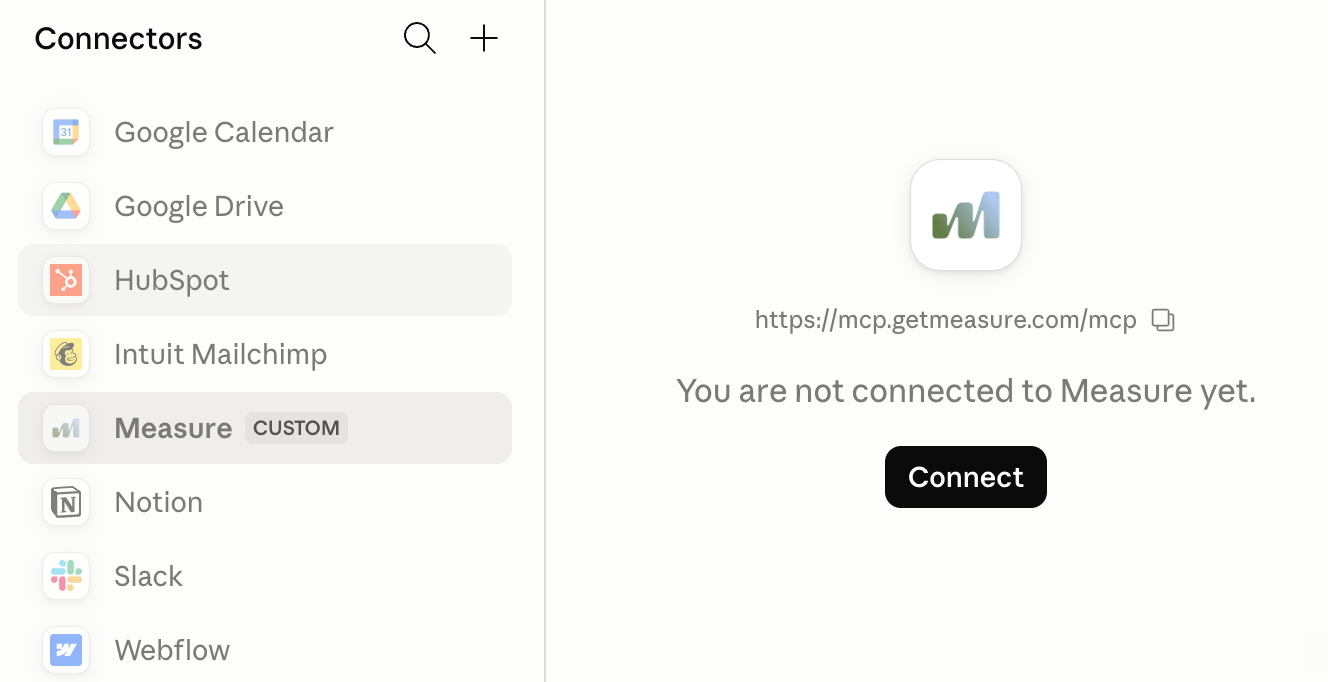 Step 2 — Connect
Click Measure to open its detail panel, then click Connect. This launches the Measure authorization flow in your browser.
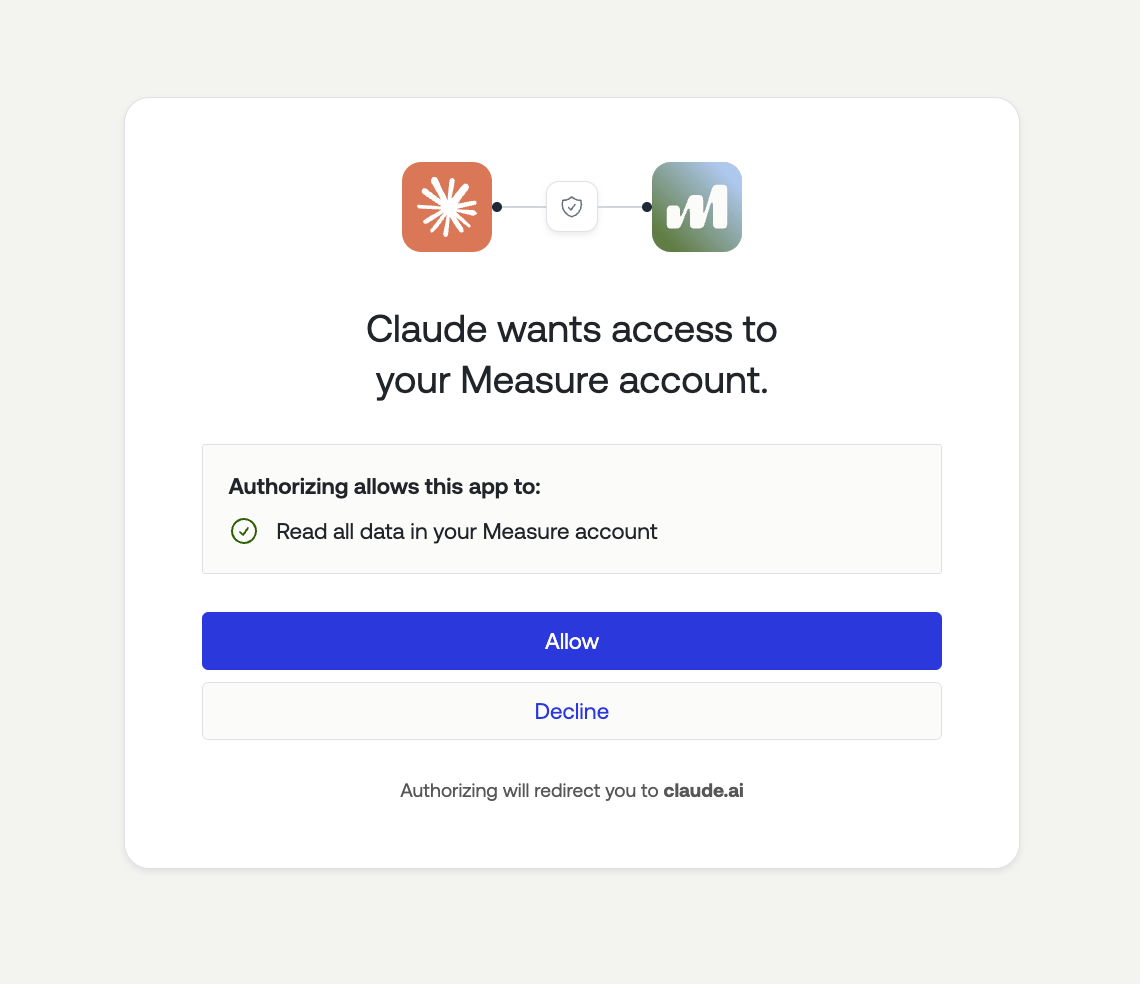
Step 3 — Authorize access
Select the Measure organization you want to connect, then click Allow to grant Claude read access to your account data. You’ll be redirected back to Claude.ai when done.
Step 2 — Connect
Click Measure to open its detail panel, then click Connect. This launches the Measure authorization flow in your browser.
Step 3 — Authorize access
Select the Measure organization you want to connect, then click Allow to grant Claude read access to your account data. You’ll be redirected back to Claude.ai when done.
 Step 4 — Configure tool permissions (optional)
Once connected you’ll see a “Connected to Measure” confirmation and a list of 27 read-only tools available to Claude. You can control how Claude uses each tool with the permission toggle:
Step 4 — Configure tool permissions (optional)
Once connected you’ll see a “Connected to Measure” confirmation and a list of 27 read-only tools available to Claude. You can control how Claude uses each tool with the permission toggle:
| Setting | Behavior |
|---|
| Always allow | Claude uses the tool automatically |
| Ask every time | Claude asks before running the tool |
| Never | The tool is disabled |
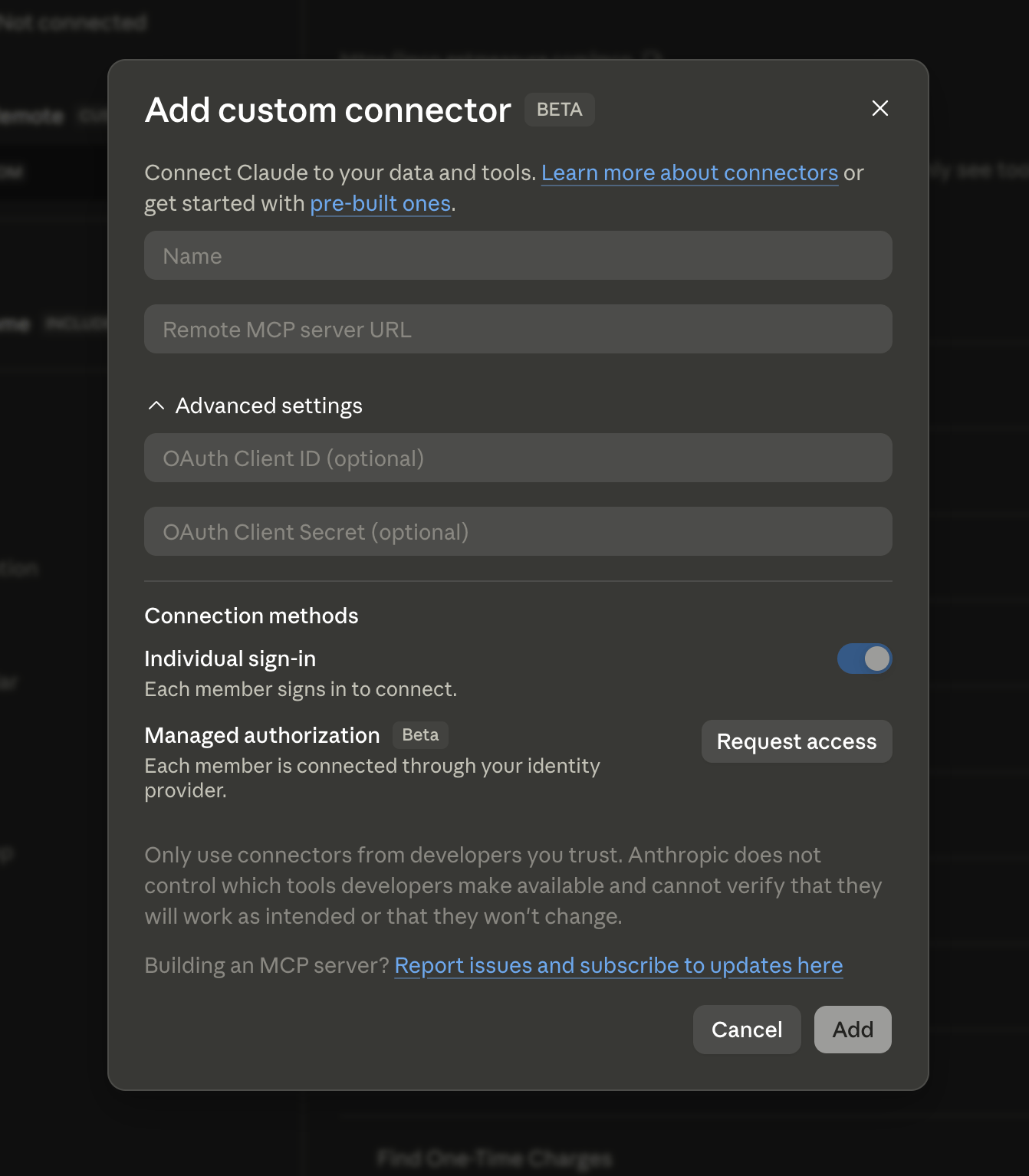
- Enter a Name (e.g.
Measure) and Remote MCP server URL: https://mcp.getmeasure.com/mcp
- Expand Advanced settings and enter OAuth Client ID:
claude-measure-mcp
- Click Add
Claude Code
claude mcp add --transport http measure https://mcp.getmeasure.com/mcp \
  --header "MEASURE_API_TOKEN:<your-api-key>" \
  --header "MEASURE_COMPANY_ID:<your-company-id>"
Cursor
- Open Cursor Settings → MCP.
- Click Add new global MCP server and paste:
{
  "measure": {
    "type": "http",
    "url": "https://mcp.getmeasure.com/mcp",
    "headers": {
      "MEASURE_API_TOKEN": "<your-api-key>",
      "MEASURE_COMPANY_ID": "<your-company-id>"
    }
  }
}
- Save and reload the window.
Other MCP Clients
Any client that supports the MCP Streamable HTTP transport can connect using:
- Endpoint:
https://mcp.getmeasure.com/mcp
MEASURE_API_TOKEN header: your Measure API keyMEASURE_COMPANY_ID header: your Measure company ID
Example prompts
Once connected, you can ask Claude things like:
- “Show me all overdue invoices from this month”
- “Find all active subscriptions for Acme Corp”
- “Which customers have the highest MRR?”
- “List contracts expiring in the next 90 days”
Troubleshooting
Measure doesn’t appear in my connector list
On Claude Team or Enterprise accounts, your Claude admin may need to enable third-party connectors. Ask them to enable the Measure connector for your organization. Alternatively, use the + button to add it manually as described above.
Authorization failed or redirected incorrectly
Make sure you’re logged into the correct Measure account in your browser before clicking Connect, and that you have permission to authorize third-party integrations in that Measure organization.
Giving your AI assistant context
For best results, load the Measure data model reference into your AI assistant’s context before starting a session. It explains how BillableItems, ProductPricings, BundlePricings, Subscriptions, and Customers relate to each other - which helps the assistant form correct queries and avoid common mistakes.
In Claude Code, you can do this with:
fetch https://docs.getmeasure.com/pages/guides/ai-context
CLAUDE.md:
For Measure API context, see: https://docs.getmeasure.com/pages/guides/ai-context
As of Apr 9 2026, the official MCP server supports read-only tools. Write tools will be exposed in July along with token scopes to ensure safety in bulk actions. If you want to be able to modify data, we recommend using your own MCP server based on our public APIs | Tool | Description |
|---|
find_billable_items | Search billable items by name, external name, or state |
find_billable_metrics | Search billable metrics by name, item, or state |
find_bundles | Search bundles by name or state |
find_contracts | Search contracts by customer, status, type, etc. |
find_credit_logs | Search credit logs by customer, invoice, action type, etc. |
find_credits | Search credits by customer, status, type, currency, etc. |
find_customers | Search customers by name, email, MRR, ARR, tags, etc. |
find_entitlements | Search entitlements by name, key, or type |
find_invoices | Search invoices by customer, status, date range, amount, etc. |
find_objects | Search billable objects by customer or item |
find_one-time_charges | Search one-time charges by customer, state, or type |
find_payment_transactions | Search payment transactions by customer, invoice, status, etc. |
find_product_pricing | Search product pricing by name, currency, type, tags, etc. |
find_products | Search products by name, state, or tags |
find_subscriptions | Search subscriptions by customer, status, MRR, dates, etc. |
get_bundle | Retrieve a bundle by ID |
get_contract | Retrieve a contract by ID |
get_credit | Retrieve a credit by ID |
get_customer | Retrieve a customer by ID or external identifier |
get_entitlement | Retrieve an entitlement by ID |
get_invoice | Retrieve an invoice by UUID |
get_invoice_link | Generate an authenticated link to an invoice |
get_payment_methods | Get all payment methods for a customer |
get_product | Retrieve a product by ID or external identifier |
get_product_pricing | Retrieve product pricing by ID or external identifier |
get_subscription | Retrieve a subscription by ID or external identifier |
next_invoice | Preview the upcoming invoice for a subscription (supports change/cancel simulation) |
Building your own MCP server
In the meantime, you can build a custom MCP server using our OpenAPI specification. The OpenAPI spec provides a complete definition of all Measure API endpoints, making it straightforward to generate an MCP server that works with any AI assistant that supports the Model Context Protocol.
Options for building
There are several approaches you can take to build an MCP server for Measure:
1. Generate with AI assistants
You can use Claude or other AI assistants to automatically generate an MCP server from the Measure OpenAPI specification. Simply provide the specification and ask the AI assistant to create an MCP server implementation in your preferred language.
2. Use MCP SDKs
The Anthropic MCP SDK provides tools and libraries for building MCP servers in TypeScript and Python. You can use these SDKs to create a custom server that wraps the Measure API.
3. Use OpenAPI-to-MCP conversion tools
Several community tools can automatically convert OpenAPI specifications into MCP servers, allowing you to generate a working server with minimal effort.
Setting up your MCP server
To build and configure your own MCP server:
- Download the Measure OpenAPI specification
- Create an API token from the Measure dashboard under Developers > API Token
- Use your preferred method to generate the MCP server from the OpenAPI specification
- Configure the server with your API token for authentication
Your API token should be kept secret and secure. Anyone with access to your token will be able to access Measure resources on your behalf.
Important considerations for bulk operations
Exercise caution with bulk write operations. When using an MCP server with AI assistants, it’s easy to execute bulk operations through natural language commands. However, certain actions (such as canceling multiple subscriptions, deleting customers, or applying changes to large sets of records) can be irreversible and may have significant business impact.We recommend:
- Always review bulk operations before confirming execution
- Test bulk operations with a small subset of data first
- Be explicit about which customers or subscriptions should be affected
- Consider the downstream effects of bulk changes (e.g., invoice generation, payment processing)
- Maintain backups or records of data before performing bulk modifications
- Bulk subscription cancellations: Canceling multiple subscriptions at once will immediately stop billing for those customers
- Bulk pricing changes: Changing pricing for multiple subscriptions simultaneously will affect future invoices
- Bulk refunds: Processing refunds in bulk will immediately credit customer accounts and impact your revenue
- Bulk status changes: Changing subscription or customer status in bulk can affect access to your services
Always confirm the scope and impact of bulk operations before proceeding. When in doubt, perform operations one at a time or on a small test set first.
What you can do with an MCP server
With a Measure MCP server connected to your AI assistant, you can perform operations such as:
- Create and manage customers
- Set up and modify subscriptions
- Generate and send one-off invoices
- Process payments and refunds
- Manage products, pricing, and plans
- Handle credits, discounts, and promotions
The MCP server provides a conversational interface to the full Measure API, allowing you to manage your billing operations through natural language interactions. 
